Overview: How to configure one of our fully-hosted cloud accounts on a Grandstream phone handset using Grandstream GDMS cloud portal.
Requirements: an admin account at https://www.gdms.cloud and an "Organization" created ready for this customer/site phone system, along with MAC address and serial number of online device (handset).
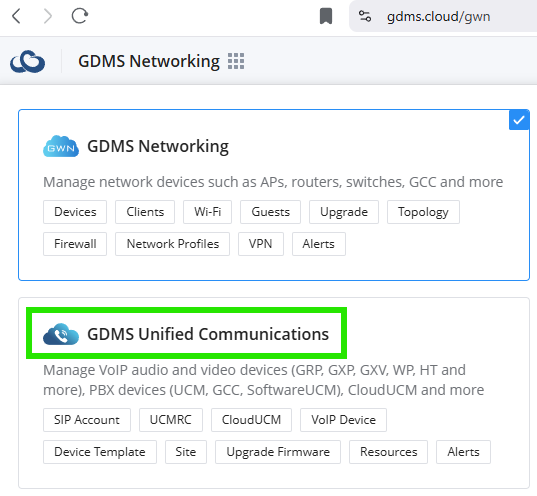
The following steps assume you are logged into https://www.gdms.cloud and have selected the "Organization" for this phone account
Step 1: Add SIP server
Extension > SIP Server > "+ Add Server":
Server Name: (enter the server name provided for the account, without the ":5060" port, such as ucm3.btwave.co.uk
SIP Server: (same as Server Name, such as ucm3.btwave.co.uk)
SIP Transport: UDP
[Save]
Step 2: Add VoIP device (handset)
VoIP Device > "+ Add Device": (enter MAC and serial number if asked; ensure device is online!)
Firmware: before proceeding, ensure latest firmware has been updated
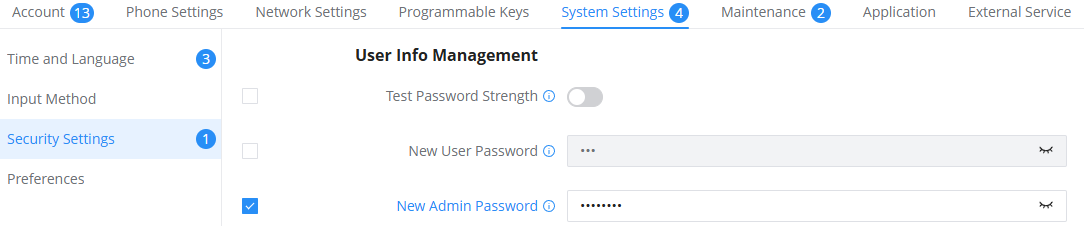
Optional: Set any handset settings that you require, such as default "admin" password at System Settings > Security Settings > "User Info Management" (heading) > New Admin Password:
(Save & Apply)
Step 3: Add SIP account
Extension > SIP Account > "+ Add Account"
Account Name: (enter the 4-digit extension number provided such as 1234)
SIP User ID: (Same as Account Name)
SIP Authentication Password: (enter the SIP password provided; be sure NEVER to reveal this password to the user)
Name: Enter display name for the account, such as the phone number 01234567890
Voicemail Access Number: This should be *97
SIP Server: (Select the server you added earlier, such as ucm3.btwave.co.uk)
Assign Device:
Site field: leave as Default
Model field: Select the device that added earlier
MAC field: Select the MAC of the device added earlier
Account filed: Select Account 1
Server field: (Select the server you added earlier, such as ucm3.btwave.co.uk)
[Save]
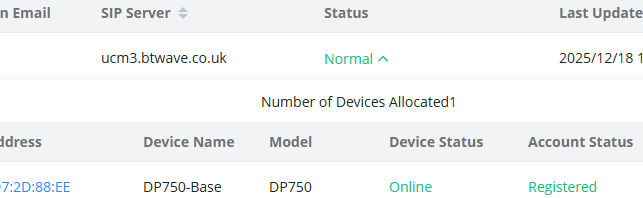
Ensure account status is "Normal", then make a test call to verify:
Tips: If you are porting a number and we have provided a temporary number in the meantime, suggest that user contact their current provider and ask for all calls to be forwarded to the temporary number so that user can begin using the new device/account immediately. Add WAVE app (server address plus the port number 8090, such as https://ucm3.btwave.co.uk:8090/ in Edge browser or Apps) - see https://internetservices.freshdesk.com/en/support/solutions/articles/5000749602-wave-app
Admin tips: Add a "Device Template" in GDMS for each model so that you can edit phone parameters such as:
- Language
- Time zone
- Other custom settings...
[End of article]
Was this article helpful?
That’s Great!
Thank you for your feedback
Sorry! We couldn't be helpful
Thank you for your feedback
Feedback sent
We appreciate your effort and will try to fix the article