Overview: The router model GWN7062E (and GWN7062ET) have constraints that can result in Wi-FI SSIDs created in GDMS failing to deploy (sync) down to the GWN7062E/T device. Here's why and how to ensure compatibility.
GDMS settings
Settings > Wi-Fi >
> Mesh: Enable
> Global Radio Settings >
> 2.4GHz >
> Channel Width: 20/40 MHz
> 40MHz Channel Location: Auto
> Channel: Auto
> Radio Power: Medium
> 5GHz >
> Channel Width: 80 MHz
> Channel: Select all EXCEPT 100-144 (DFS not suitable for UK)
> Radio Power: Medium
> 6GHz >
> Channel Width: 160 MHz
> Channel: Auto
> Radio Power: Auto
The above settings ensure no conflict with any SSIDs that you create within GDMS. Another option is to set the above settings within a specific SSID, instead of "Use radio settings". The GWN7062E/T software/hardware does not have exactly the same capabilities as the Enterprise dedicated APs, and the settings for each country are strictly applied (such as not being able to use DFS channels within the UK).
Symptoms
In GDMS an orange exclamation mark will appear next to the router if some aspects of the Wi-Fi failed to deploy; clicking the orange icon will reveal a pop-up dialog panel with useful details about why the sync failed.
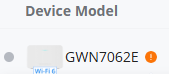
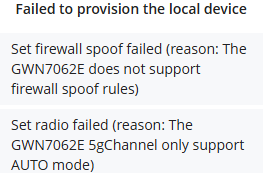
In this example the title "Failed to provision the local device" is followed by 2 incompatibility messages:
| Set firewall spoof failed (reason: The GWN7062E does not support firewall spoof rules) |
| Set radio failed (reason: The GWN7062E 5g Channel only support AUTO mode) |
...the "5g Channel...AUTO" means that the SSID 5 GHz radio must be set to "auto" channel rather than force or limit the channel number.
Alternative remedies
If you do not want to edit the global (site) radio settings then a couple of other options will provide the same remedy:
Alternate remedy 1: Devices > [edit device] > Configuration > [Manually set radio options instead of "Use radio settings"]
Alternate remedy 2: Settings > Wi-Fi . [edit a specific SSID] > Device Assignment > [Remove the GWN7062E/T device from the assigned device list that you want this SSID deployed to]
Alternate remedy 3: Same as remedy 2 above, but also log into the device and DISABLE Wi-Fi radios completely, instead using the device as a wired router and using the more feature-rich dedicated Enterprise APs on the LAN instead.
Was this article helpful?
That’s Great!
Thank you for your feedback
Sorry! We couldn't be helpful
Thank you for your feedback
Feedback sent
We appreciate your effort and will try to fix the article