Overview
How to edit/import shared contacts for your on-premise PBX (Grandstream GCC60xx series). At least one member of staff should have access to the "ContactsAdmin" username, which needs to be created by an IT Admin before use (see below).
The ContactsAdmin user can add/edit and import contacts to a shared address book, with the following fields:
- Mobile Number: (main phone number*)
- First & Last name:
- Email:
- Home Number: (alternate phone number*)
- Remark: (Notes)
* Number format: it is recommended to use E.164 format which begins with a "+" symbol followed by the country code (UK=44). Example: +441234567890 is made up of "+44" (country code), "1234" (area code without leading "0"), "567890" (the local part of the number)
Usage
Desk phones and the WAVE app can access the internal ("PBX") and shared external phone book contacts to display correct Caller ID of inbound calls, and for dialling outbound contacts. All users will be able to access these shared contacts, in addition to any contacts they add manually to their phone. This type of shared phonebook uses an LDAP server, built into the PBX.
Logging in to the PBX
Log in at the IP of your PBX (such as 192.168.80.2) on HTTPS port 8089, such as https://192.168.80.2:8089
Navigate to Contacts > Contact Management > External Contacts tab
Adding a new contact
Click Add and fill in the Mobile Number (does not need to be a mobile number), First and Last name; other fields are optional. Click Save and then Apply (top of page).
Tip: You can navigate to "Department Management" to create "Departments" for contacts, for example: "Customer Company A" or "Supplier X". Contacts can then be organized into these sub-departments.
Importing contacts
You can import from a list of contacts which could be exported from an existing contacts phonebook such as Microsoft Outlook and edited to match the fields format in attached example CSV file.
You can augment with new contacts by re-importing and choose the option "do not create duplicates".
Testing your results
You can view the shared external contacts by logging into the WAVE app with your extension number (such as 1012) and your WAVE password on HTTPS port 8090, such as at https://192.168.80.2:8090
Locate the newly added/imported contacts in Contacts and click the contact's icon to view details.
Inbound Caller ID recognition
Each handset will need to have LDAP "Incoming" enabled, so as to check each inbound call against the entries in the LDAP address book. An admin can use GDMS Unified Comms > [Select Organization] > Voip device to log into the web GUI remotely, or onsite, and edit the following:
[Web GUI] Application > LDAP > Local Configuration > LDAP Lookup: [Enable Incoming & Outgoing Calls] > "Save & Apply"
On some phones (such as GRP series) the user can use the keypad to navigate to: Menu > Contacts > LDAP directory > Config > Incoming / Outgoing Calls: ENABLED (then "Save")
If incoming calls are still not recognized, check the number format; usually E.164 format is used (numbers begin "+44" rather than just "0"), and you can test both types by adding 2 contacts with the same number in different format.
For IT Admin: How to enable the LDAP server for Shared Contacts (External)Log into the GCC60xx (such as https://192.168.80.1) and navigate to PBX app > System Settings > LDAP Server > Enable LDAP Server (Save & Apply) Create a limited privilege role for non-Admin staff Navigate to Maintenance > User Management > [Custom Privilege tab] > Add
Return to the Home app > System Settings > User Management > [Role tab] > Add
On the "User Information" tab > Add
Provide the PBX URL (such as https://192.168.80.2:8089 ), username ContactsAdmin and password to the member of staff who can then follow the above instructions to administer the shared external contacts using the above instructions. Ensure that the extension user "WAVE password" has been set and conveyed to the user so that they can test the shared contacts. Tip: Add a programmable soft-key (MPK / VMPK) with blank value for action "LDAP Search" to handsets for quick access to the LDAP server phonebook. If using Grandstream phones then editing a Global Policy & Template will deploy to phones:
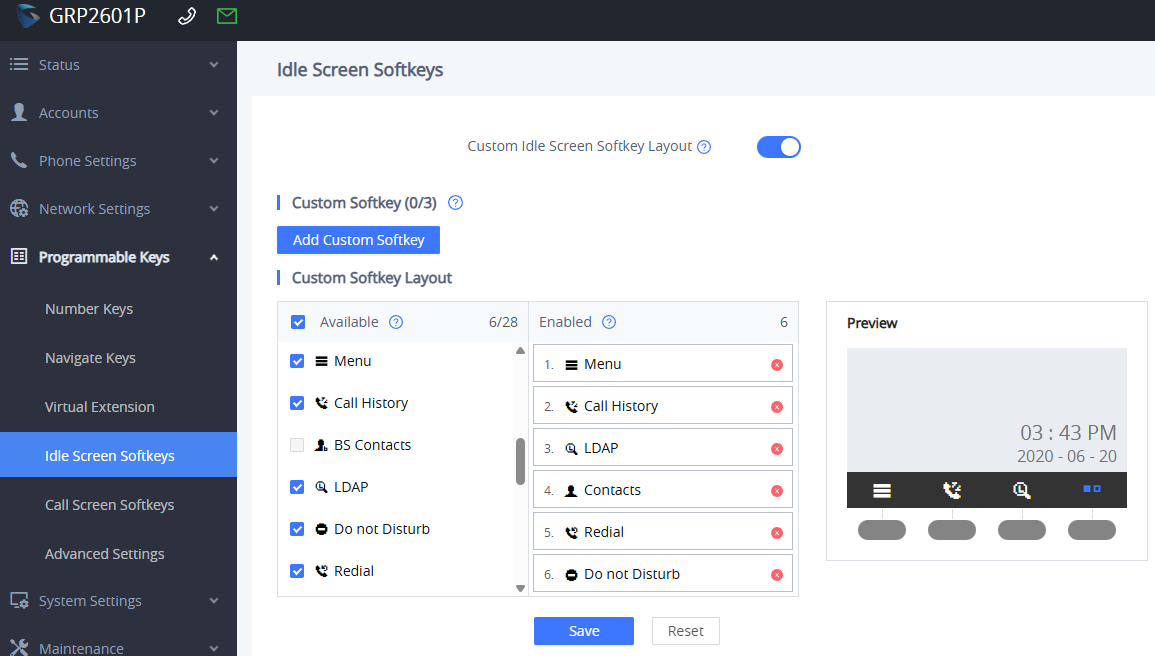 * When settings key behaviour using parameters (much faster if multiple handsets) use the following table:
|
Was this article helpful?
That’s Great!
Thank you for your feedback
Sorry! We couldn't be helpful
Thank you for your feedback
Feedback sent
We appreciate your effort and will try to fix the article